Export/Import Outlook Data
How to Archive Email from Outlook Classic
A simple, reliable way to reduce mailbox clutter and keep older email accessible.
A large mailbox can slow you down and make Outlook harder to manage. Archiving older email to a separate .pst file is a practical way to reduce clutter while keeping important messages available when you need them. In this guide, we explain the best archiving options in Outlook Classic, why the same workflow is not fully available in Outlook (new), where to store the archive safely, and how to reopen it later.
This article focuses on creating a traditional local archive from Outlook Classic for Windows using an Outlook Data File (.pst), keeping that archive available for future access, and storing it safely. If your goal is to reduce the size of your active mailbox while retaining access to older email, Outlook Classic is the version to use. Outlook (new) offers limited support for opening some .pst files, but it does not replace the full manual Archive and AutoArchive workflow available in Classic Outlook.
Important: In Outlook, the word archive can mean different things. The Archive button usually moves messages to an Archive folder inside the mailbox. That can tidy your folder list, but it does not usually reduce mailbox size in the same way as moving older items into a separate local .pst file. For a traditional local archive file, use the Manual Archive or AutoArchive features in Outlook Classic.
Archiving Options
Manual Archive: Best when you want full control. You choose the folder, the cut-off date, and the archive file location.
AutoArchive: Best when you want Outlook Classic to move older items automatically on a schedule.
Archive button: Useful for quickly moving selected messages into an Archive folder, but this is not the same as creating a traditional archive.pst for long-term local storage.
Classic Outlook vs New Outlook
If you want to create, manage, and keep using a traditional archive.pst file for mailbox cleanup and long-term local storage, Outlook Classic remains the right tool for the job. Microsoft now allows new Outlook to open certain .pst files in some scenarios, but that is still not the same as the full local archiving workflow available in Classic Outlook. AutoArchive is not available in new Outlook, and working with .pst files is still more limited there than it is in Classic Outlook.
Where to Store the Archive
Choose a location on the local computer that is easy to back up and easy to find later. A common approach is to create a folder such as Documents\Outlook Archives or another local data folder that is already included in your normal backup routine.
Recommendation: Avoid saving an active .pst archive file inside OneDrive, SharePoint-synced folders, or other live cloud-sync locations. Microsoft specifically warns that Outlook data files stored in OneDrive can cause sync problems such as Processing changes or file in use errors. These files can become very large, change often, and are safer when stored in a local folder outside cloud-synced locations. If you want an additional backup copy, make that a separate backup process rather than working directly from the cloud-synced copy.
Method 1: Manual Archive
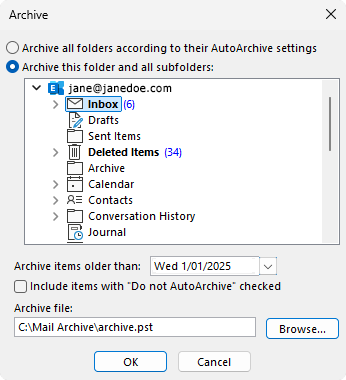
- Open Outlook Classic.
- Select File > Info > Tools > Clean Up Old Items.
- Select Archive this folder and all subfolders.
- Choose the folder you want to archive, such as Inbox, Sent Items, or a project folder.
- In Archive items older than, choose the cut-off date. Items older than that date will be moved to the archive file.
- If needed, tick Include items with 'Do not AutoArchive' checked to include items that were previously excluded.
- In Archive file, browse to the local folder where you want to save the file and confirm the file name, such as archive.pst.
- Select OK to begin the archive.
After the process completes, the archived items are moved into the selected .pst file. Outlook Classic normally adds that file to the folder list automatically so you can browse it straight away.
Method 2: AutoArchive
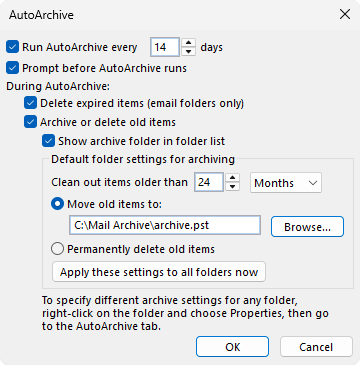
- Open Outlook Classic.
- Select File > Options > Advanced.
- Under AutoArchive, select AutoArchive Settings.
- Tick Run AutoArchive every and choose how often Outlook should archive older items.
- Choose whether Outlook should prompt before AutoArchive runs.
- Select Move old items to and browse to a local folder for the .pst file.
- Choose the default age for items to be archived.
- Select OK to save the settings.
You can also adjust AutoArchive behaviour for individual folders by right-clicking a folder, selecting Properties, and reviewing the AutoArchive tab. This is useful if, for example, you want Sent Items archived sooner than Inbox. Be careful with any setting that permanently deletes items instead of moving them to an archive file.
Method 3: Archive Button
The Archive button is useful when you want to move selected messages out of the Inbox into an Archive folder quickly. It is easy and convenient, but it usually keeps those items inside the mailbox structure rather than moving them to a separate local .pst file. Use this for day-to-day tidying. Use manual Archive or AutoArchive when you want a true local archive file.
How to Reopen archive.pst
If the archive file is not already visible in Outlook Classic, you can attach it again at any time:
- Open Outlook Classic.
- Select File > Open & Export > Open Outlook Data File.
- Browse to the location of the archive file, such as archive.pst.
- Select the file and choose Open.
Screenshot placeholder: File > Open & Export
> Open Outlook Data File, followed by the archive appearing in the folder
list.
Caption: Reopening archive.pst in Outlook Classic.
Once opened, the archive will appear in the folder list, usually toward the bottom. You can expand it, browse folders, search it, and move items if needed. If you want to remove it from view without deleting the file itself, right-click the archive and choose the option to close that Outlook Data File.
Note about Outlook (new): New Outlook can now open certain .pst files, but only under specific conditions, and it still does not replace Classic Outlook for full local archiving. If your objective is to create, maintain, and manage a traditional archive.pst, Outlook Classic remains the clearer and more capable option.
Best Practices
- Name archives clearly. For example, use names such as Archive-2024.pst or Projects-OldMail.pst.
- Store active archives locally. Keep the working file on the PC or another local path that is part of your normal backup routine.
- Do not work directly from OneDrive or similar sync locations. Large, constantly changing .pst files are not a good match for live sync.
- Keep backups separate. If the archive is important, make a backup copy using your normal backup system rather than relying on a live cloud-sync folder.
- Review archive size periodically. Very large archive files can be harder to manage. Splitting archives by year or topic can make them easier to maintain.
Troubleshooting
If you cannot find the archive commands, confirm that you are using Outlook Classic rather than Outlook (new).
If your organisation uses server-side retention or online archive policies, some local archiving options may be limited or managed by IT.
If the archive file does not appear after archiving, use File > Open & Export > Open Outlook Data File and browse to the file manually.
If Outlook becomes unstable or the archive was stored in a sync folder, move the file to a local non-synced folder before using it again.
Conclusion
For anyone who wants a proper long-term local email archive, Outlook Classic remains the strongest option. Manual Archive gives you direct control, while AutoArchive can move older items automatically in the background. Store the archive in a sensible local folder outside OneDrive and other live sync locations, and reopen it later through Open Outlook Data File whenever you need to review or search older mail.
If you would like help setting up archiving correctly or choosing a safe storage location for Outlook data files, Corteq can assist.
Quick Reference Checklist
Use Outlook Classic if you want a true local .pst archive.
Use Manual Archive when you want full control over folders, dates, and file location.
Use AutoArchive when you want Outlook Classic to move older items automatically.
Do not rely on the Archive button if your goal is to reduce mailbox size using a separate local file.
Store active .pst files locally, not inside OneDrive or other cloud-sync folders.
Reopen archive.pst later through File > Open & Export > Open Outlook Data File.
Add screenshots to show the Archive dialog, AutoArchive settings, and the attached archive in the folder list.